How to use My Auto Edit: make a beat-synced video in minutes
If you’ve ever spent an evening dragging clips around a timeline trying to land every cut on the beat, this is for you. My Auto Edit does that part for you — you bring the footage and a song, it finds the beat and makes the cuts. Here’s the whole thing, start to finish, with a screenshot for every step.
Before you start
Grab two things: a handful of photos or video clips, and a song you want them cut to. That’s it. You can do everything below on your phone — uploads work straight from your camera roll, HEIC photos and .mov videos included.
1. Create your free account
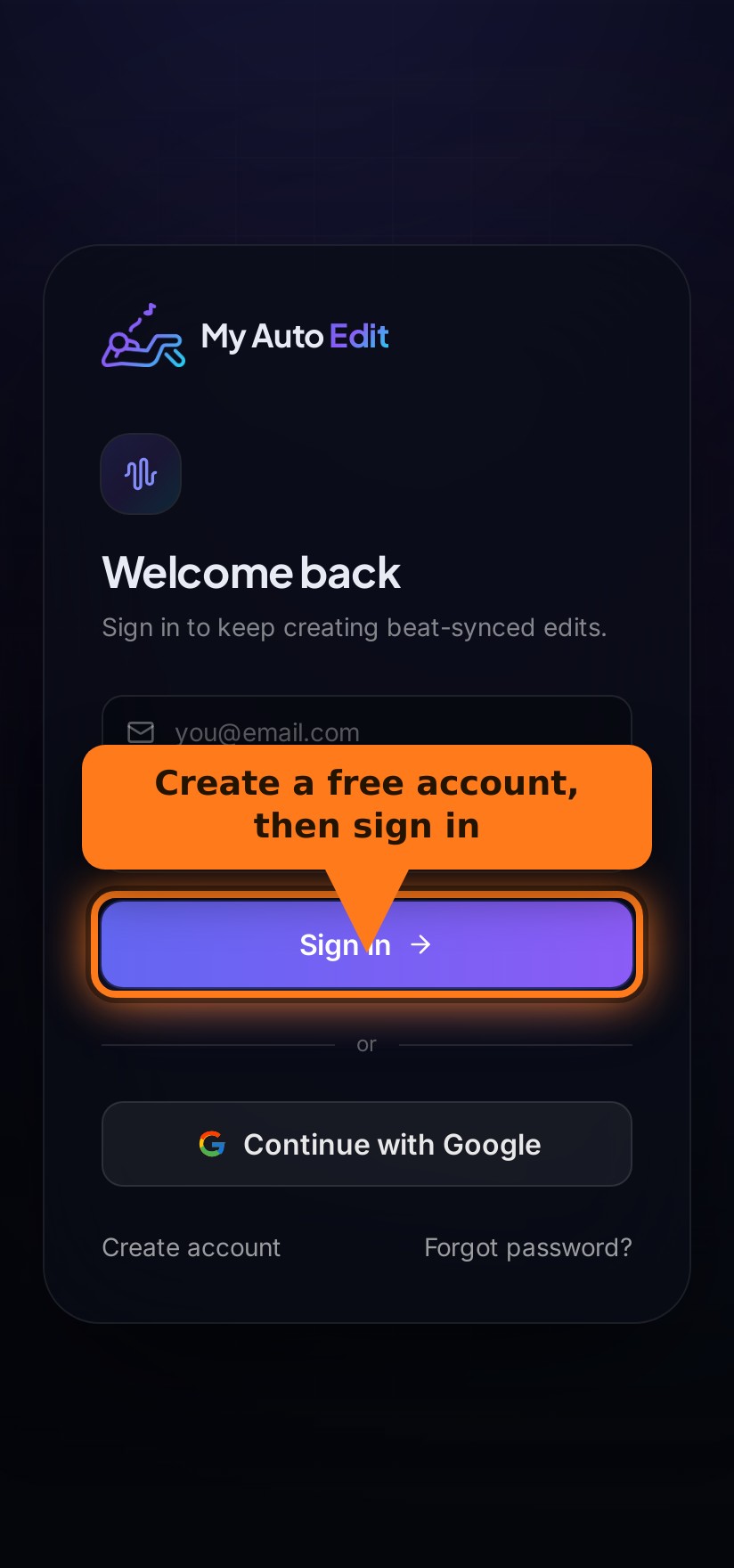
Head to the sign-in page and create an account. Email works (you’ll get a quick verification link — click it and you’re in), or tap Continue with Google to skip straight past that step. Either way it’s free, and you get five edits a day to play with.
2. Add your photos and videos
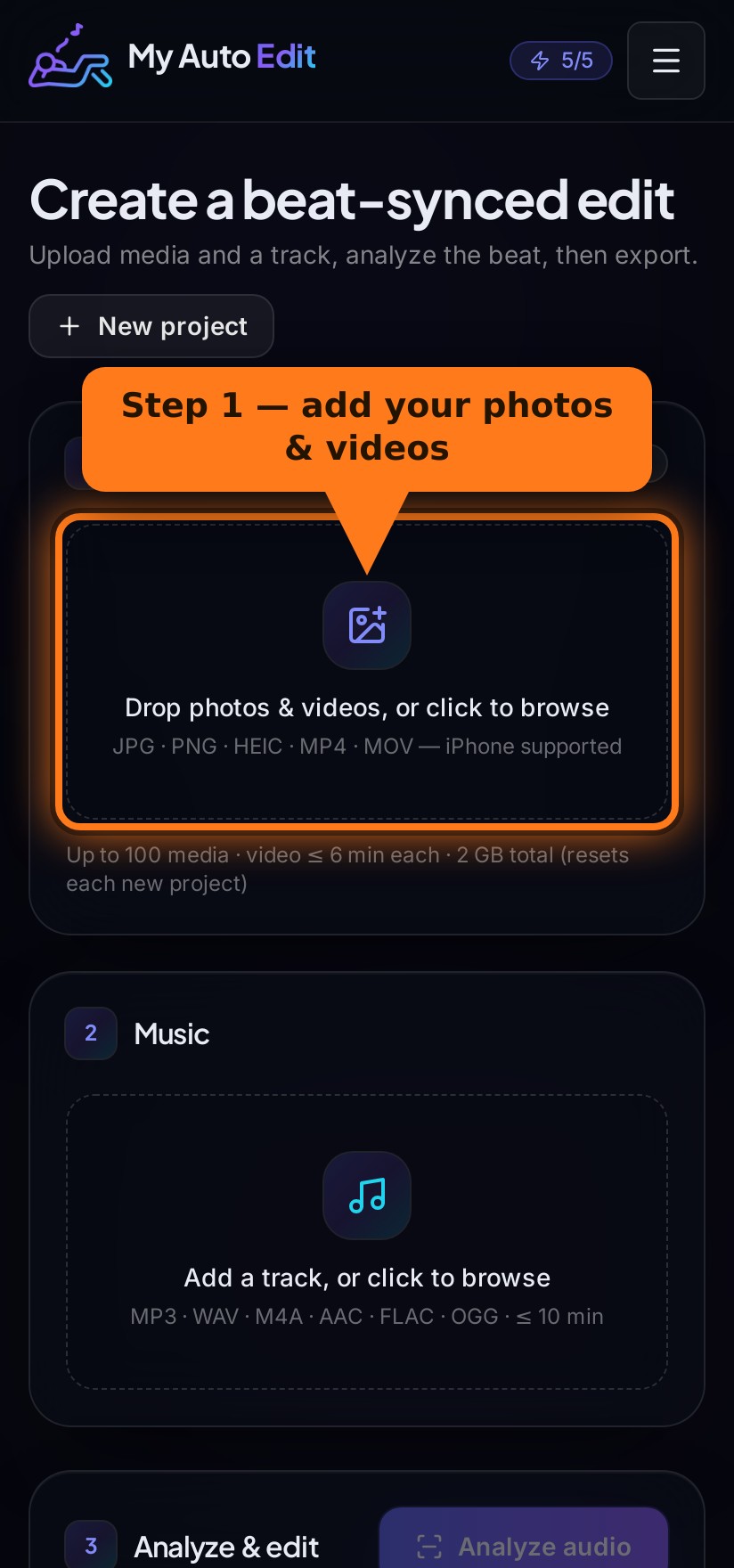
Once you’re in, you’ll land on the editor. The first box is Media. Drag your photos and clips onto it, or tap it to pick from your phone. Mix and match as much as you like — stills and video sit happily side by side, and each one becomes a cut in the final edit.
A good rule of thumb: give it more clips than you think you’ll need. The more it has to work with, the punchier the montage.
3. Add your music
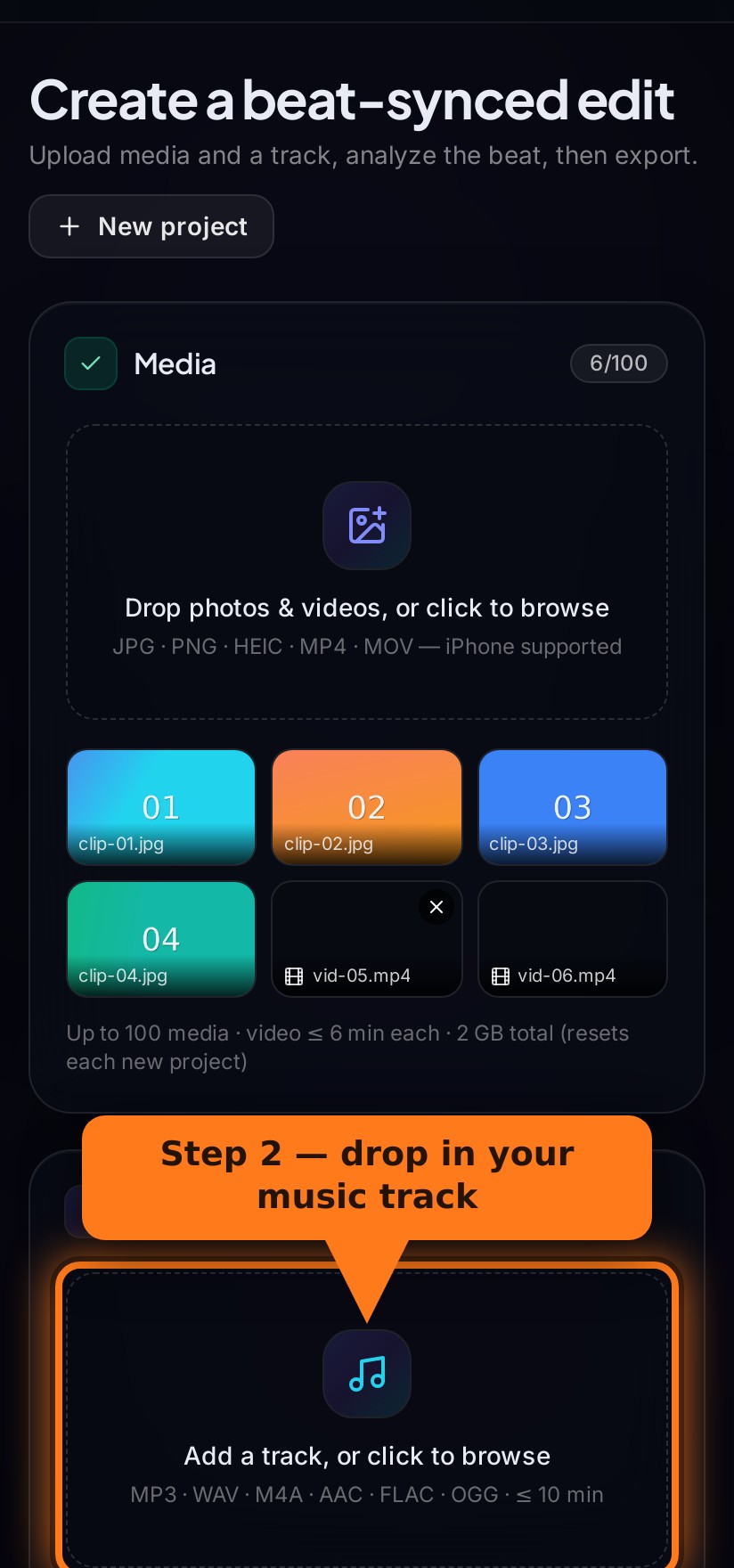
Next box down is Music. Drop in the track you want to cut to — this is the song the whole edit gets timed against, so pick something with an obvious beat. Once it uploads, you’ll see a little player so you can scrub through and check it’s the right one.
4. Analyze the beat (and trim if you want)
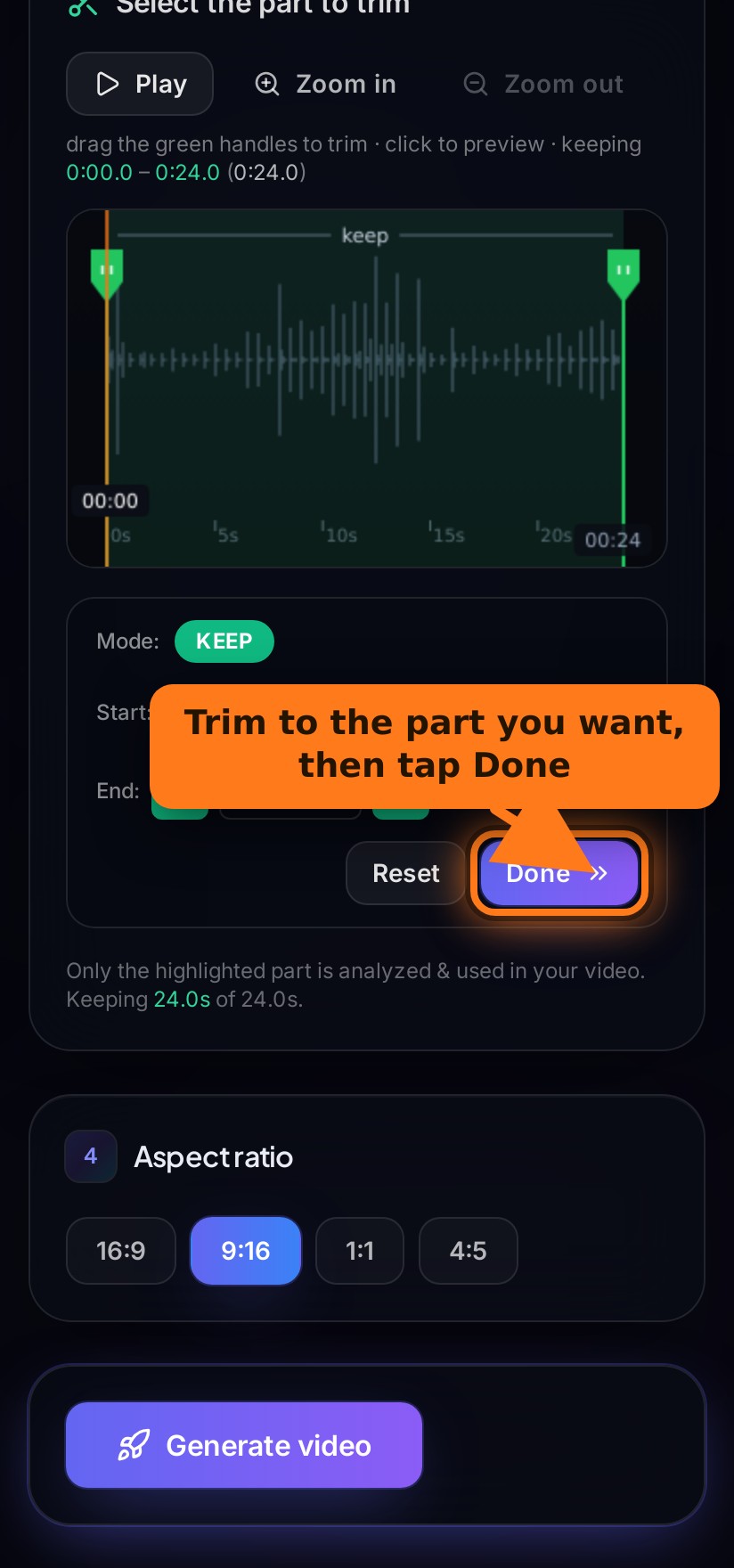
Here’s where the magic starts. Hit Analyze audio and the trim tool pops open. Drag the green handles to keep just the section you want — usually the catchiest 15 to 30 seconds — then tap Done.
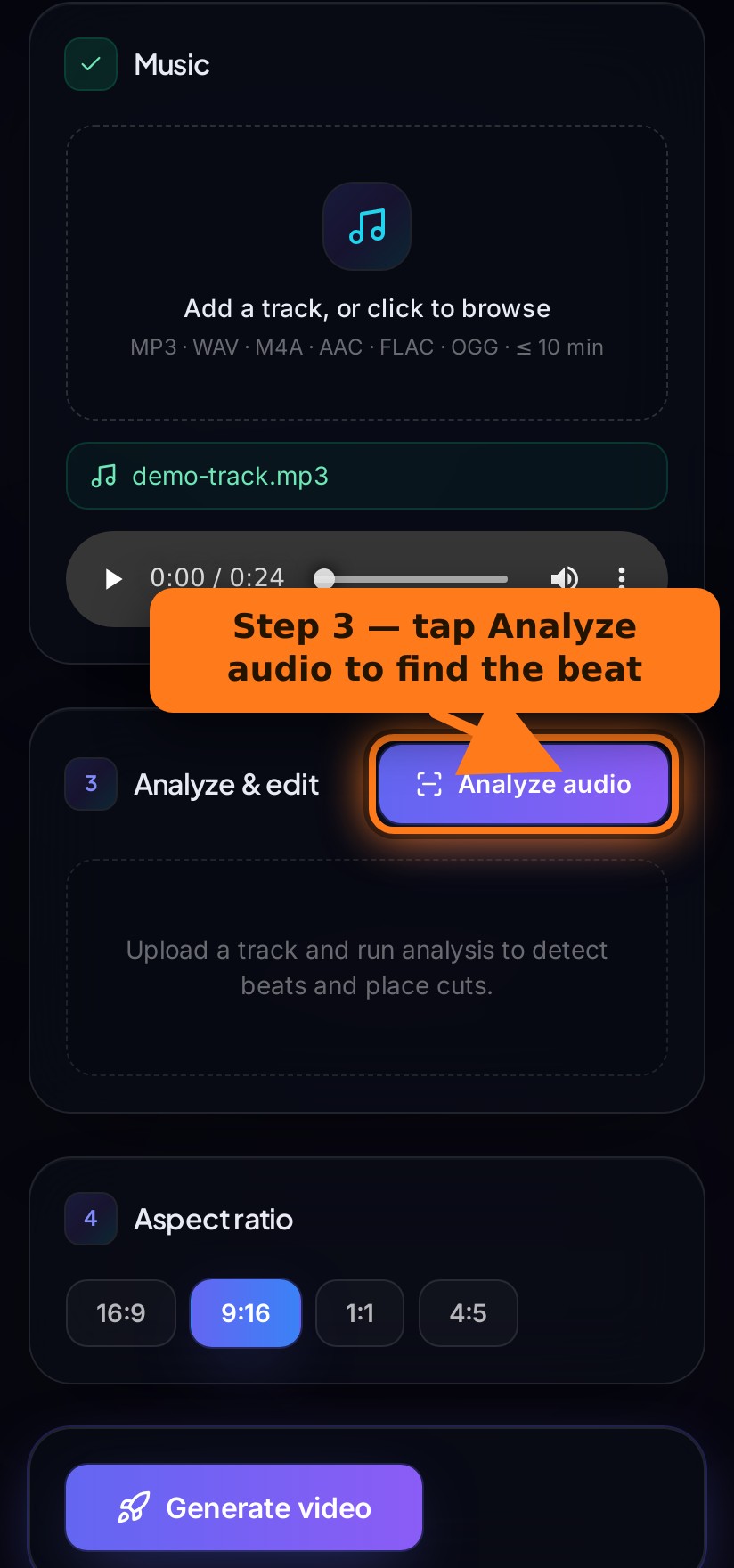
The app then listens to that slice and works out the tempo, plus where every kick, snare and hi-hat lands. Only the part you keep is analyzed and used — the rest of the track is ignored.
5. Choose where the video cuts
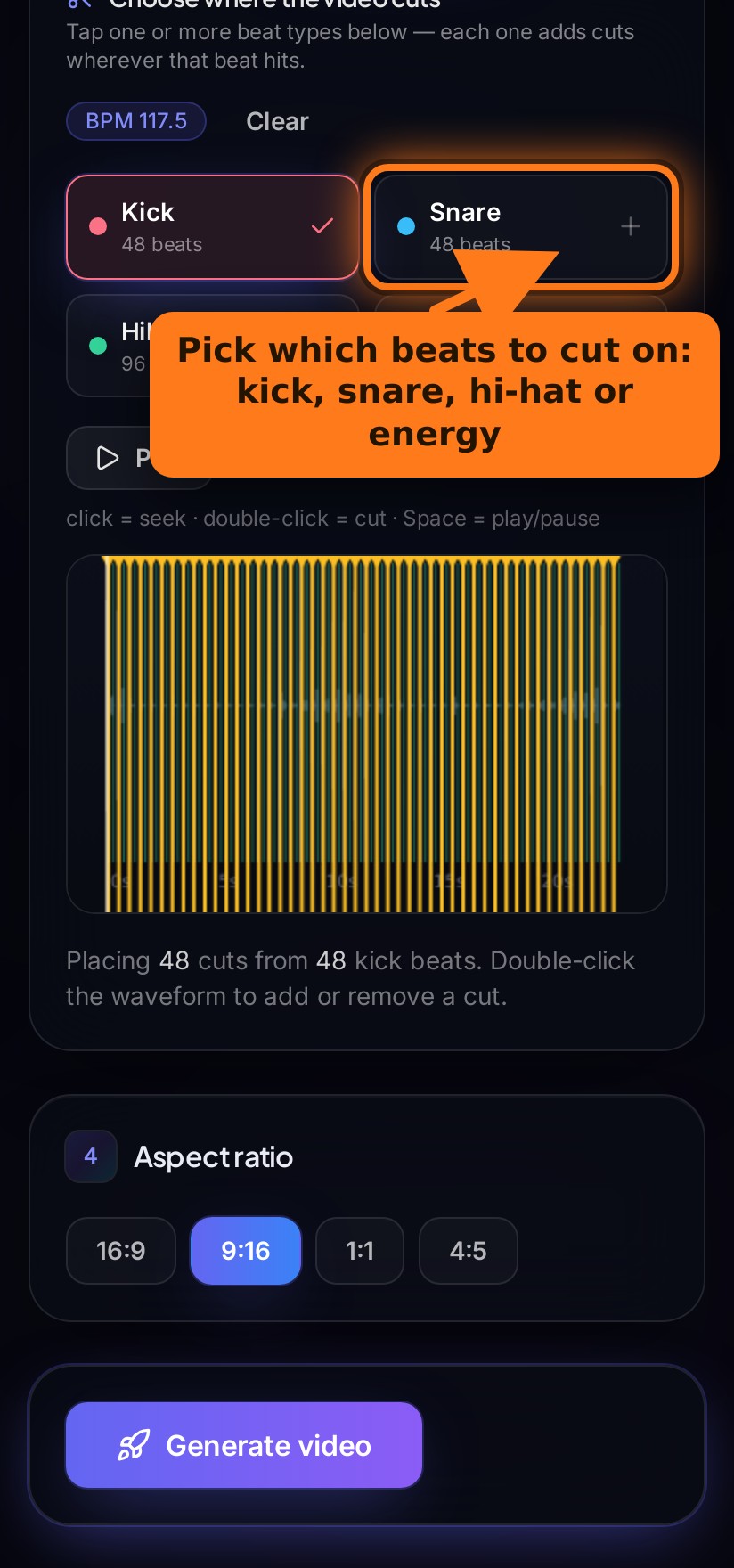
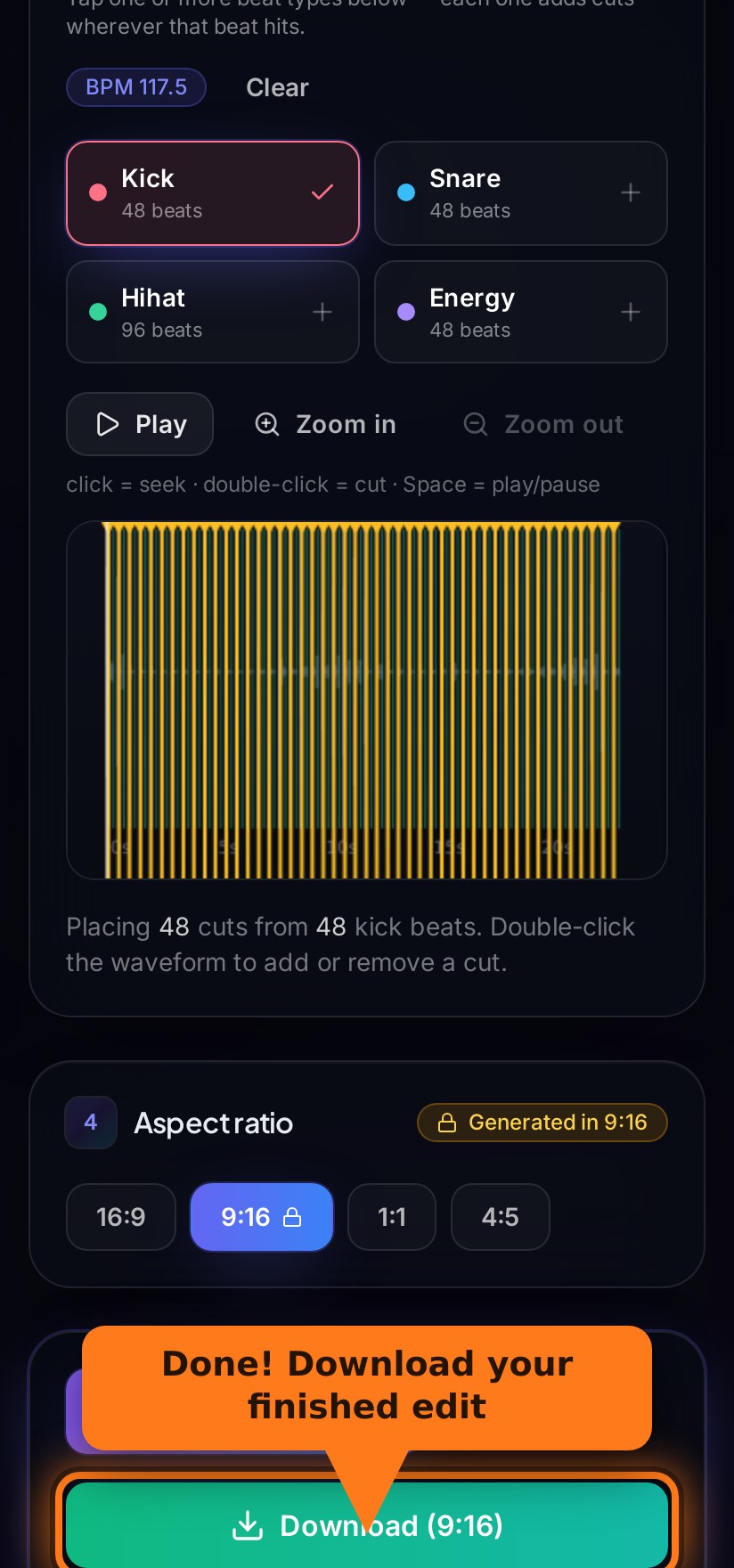
Now you decide the rhythm of the edit. You’ll see four beat types — kick, snare, hi-hat and energy — each showing how many beats it found. Tap one or more, and the app drops a cut wherever those beats hit.
Start with kick for a clean, on-the-beat feel. Add snare for something faster. Energy catches the big moments and drops. Want to fine-tune? Double-click anywhere on the waveform to add or remove a single cut.
6. Pick your aspect ratio
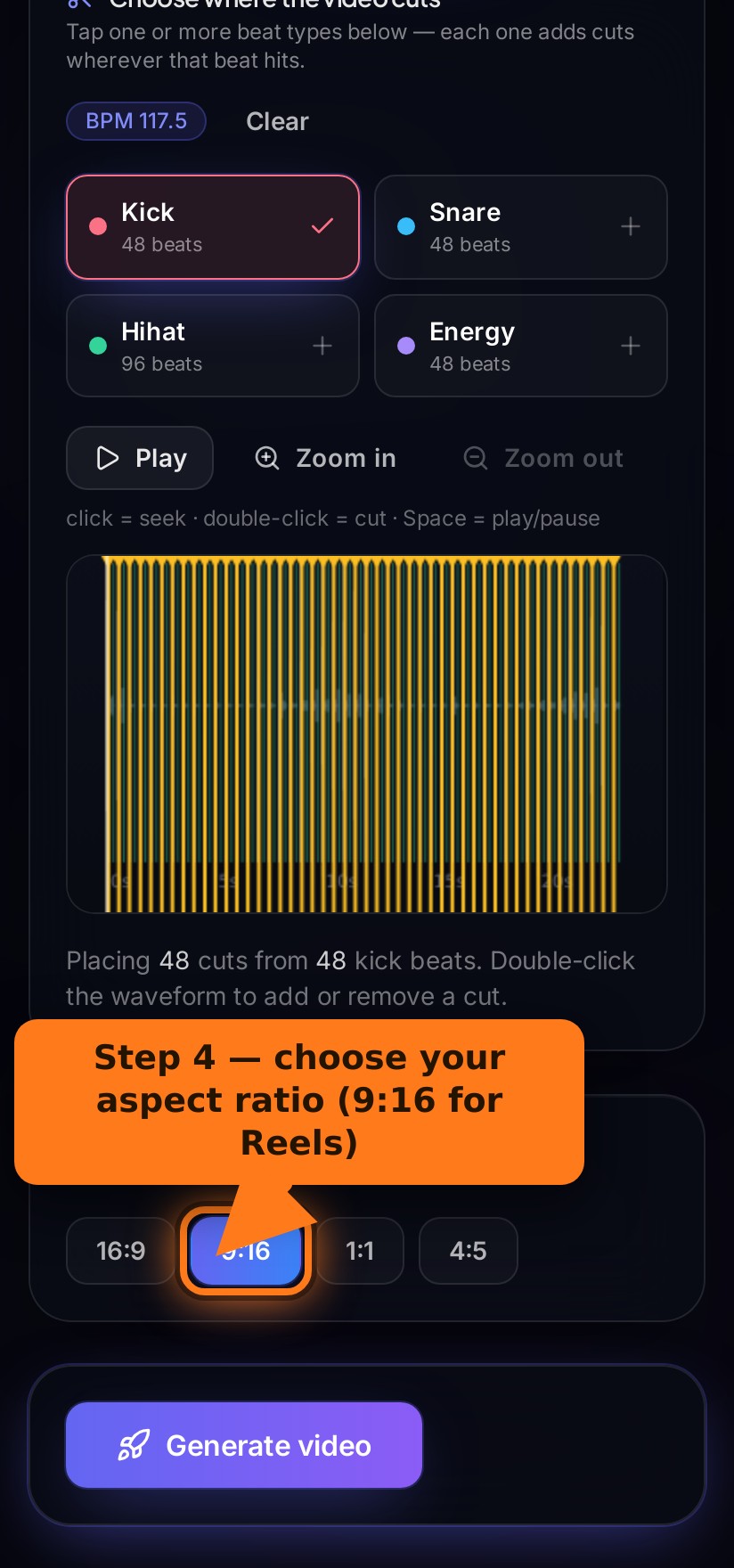
Scroll to Aspect ratio and choose the shape that fits where you’re posting: 9:16 for Reels, TikTok and Shorts, 16:9 for YouTube, or 1:1 and 4:5 for the feed.
7. Generate and download
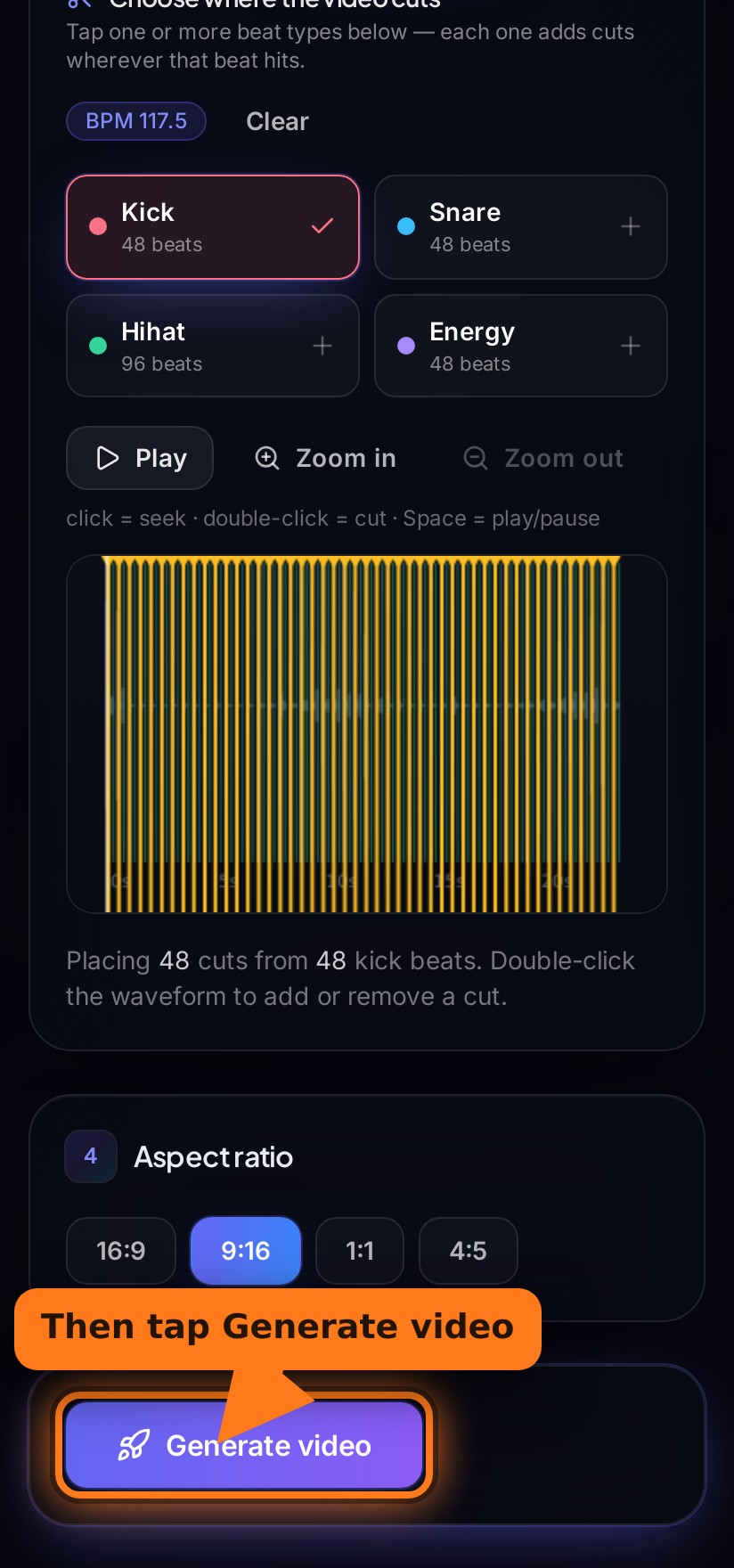
Last step. Hit Generate video and let it render — you’ll see a live progress bar with a rough time estimate. Keep the tab open while it works.
When it’s done, the Download button turns green. Tap it, save your beat-synced edit, and post it. Want a different cut of the same footage? Change the beats or the aspect ratio and generate again — the clip order reshuffles every time.
The rules & limits, in plain English
A few things worth knowing before you go all in.
Sign in with email (verify the link we send) or Google. Google sign-ins are ready instantly.
Each export uses one credit. Credits reset 24 hours after your first one that day. Stopping a render mid-way still uses a credit.
Mix photos and videos freely. Each video can be up to 6 minutes, with a 2 GB total per project.
MP3, WAV, M4A, AAC, FLAC or OGG. You can trim to just the part you want before analyzing.
Uploads and renders are wiped when you log out and after about 3 hours idle. Download before you leave.
The render runs on our server, but closing the tab mid-render loses progress.
Tips for a better edit
Shoot or pick more clips than you think you need — extra footage gives the editor more cuts to play with, and nothing gets wasted.
Start with “kick” only. It gives a clean cut on the main beat. Add “snare” for double-time energy, and “energy” to catch the drops.
Going for Reels, TikTok or Shorts? Use 9:16. The whole frame is built for vertical, so nothing important gets cropped.
Trim your song to the catchiest 15–30 seconds before you analyze — short, punchy edits hold attention far better than a full track.
Want a different feel from the same clips? Change the beat types or aspect ratio and generate again. Each render shuffles the clip order.
Running into something?
Single videos are capped at 6 minutes and the whole project at 2 GB. Trim long clips in your phone’s gallery first, or drop them in as a few shorter pieces.
You get 5 exports a day. They reset 24 hours after the first one you used today — check back tomorrow, or see the Pricing page for more.
For privacy and storage, files are cleared on logout and after a few hours of inactivity. Always download your finished edit before closing the tab.
Re-run Analyze and try different beat types, or double-click directly on the waveform to add or remove individual cuts by hand.
Still stuck? The Help & FAQ page has more, or email us at ranthamgod@gmail.com.
That’s the whole thing
Upload, analyze, cut, export. Your first beat-synced video is a couple of taps away — and it’s free.